


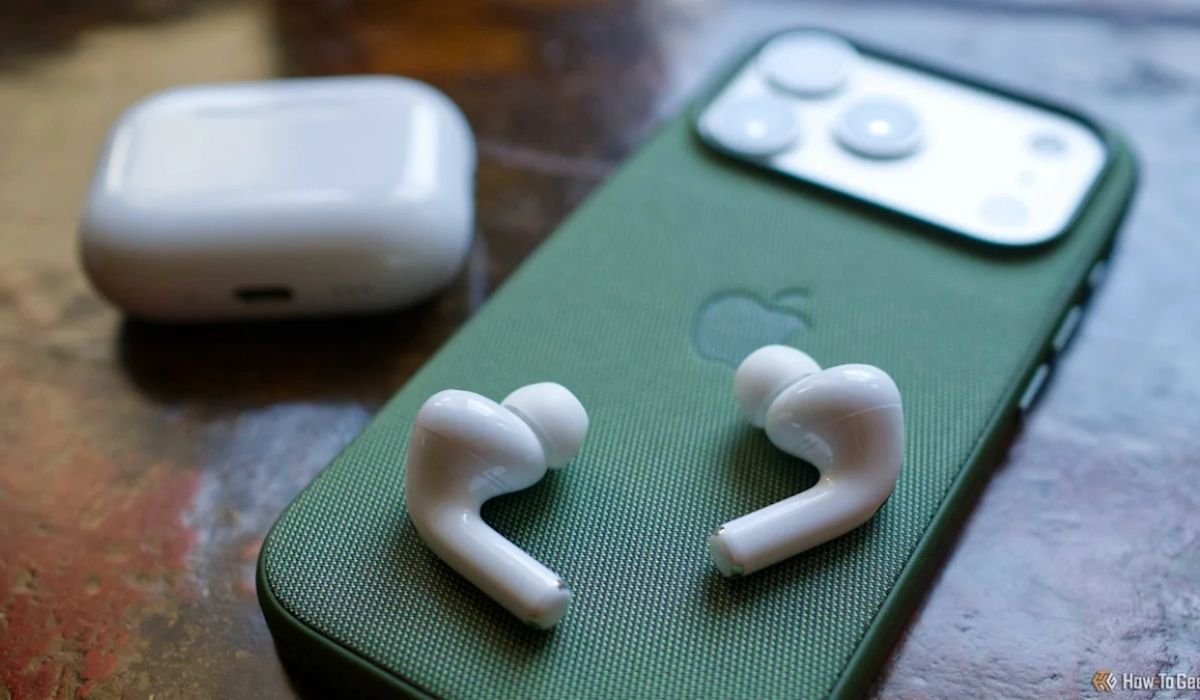
If you find that Siri’s voice interrupts your music or podcast flow, you are not alone. Many users want to stop AirPods from reading texts to maintain a peaceful, uninterrupted listening environment. Apple’s “Announce Notifications” feature is designed to keep you connected hands-free, but it can quickly become intrusive if you are trying to focus on a task or enjoy your favorite media. By adjusting a few simple settings on your iPhone or iPad, you can regain control over your audio experience and ensure your AirPods only deliver the sounds you actually want to hear.
| Feature | Details |
| Main Goal | Stop AirPods from reading texts |
| Primary Method | Settings > Notifications > Announce Notifications |
| Quick Toggle | Control Center shortcut |
| Customization | Per-app announcement settings |
| Scope | Works for AirPods and compatible Beats |
Understanding the Announce Notifications Feature
The feature that causes your devices to vocalize incoming messages is officially called “Announce Notifications.” It is part of Siri’s suite of smart tools intended to keep you informed without needing to look at your screen. While helpful for some, many people prefer to stop AirPods from reading texts because they value privacy or simply want quiet time. Knowing how this feature works is the first step toward managing it. It essentially intercepts incoming data and uses text-to-speech to read the content directly into your ears whenever your device is locked and you are wearing connected headphones.
Locating Notification Settings on iPhone
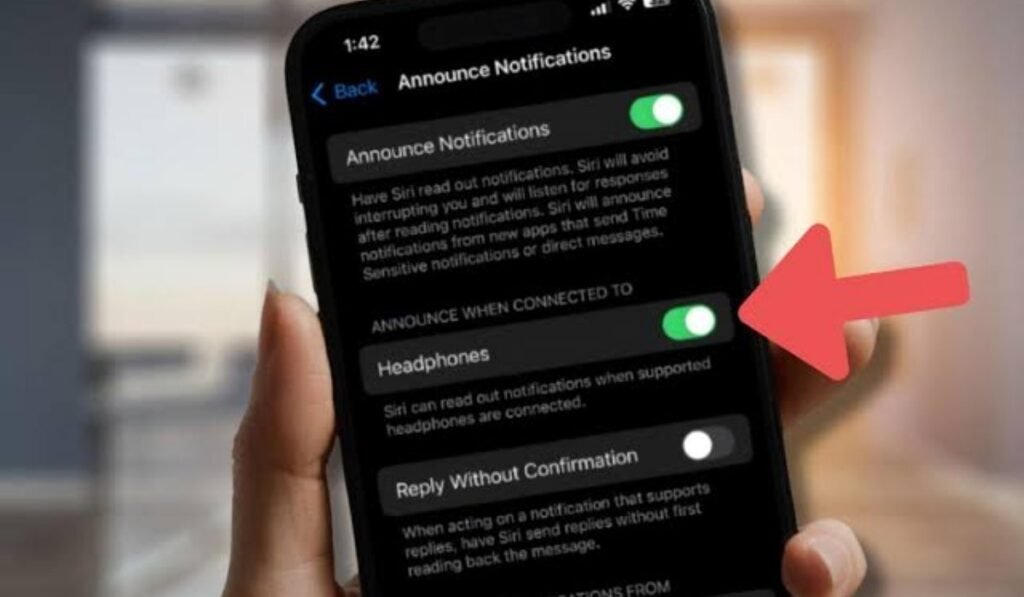
To effectively stop AirPods from reading texts, you need to navigate to the correct section within your iPhone’s Settings app. Start by opening the gear-shaped icon on your home screen. Scroll down until you find the “Notifications” tab and tap it. This menu is the command center for all alerts on your device. Within the Notifications menu, look for the section labeled “Siri.” This is where you will find the specific control for “Announce Notifications.” This path is consistent across modern iOS versions, making it easy to find regardless of your specific device model.
Disabling Announcements for All Headphones
If your goal is to stop AirPods from reading texts entirely while wearing any headphones, there is a master switch for this. Inside the “Announce Notifications” menu, look for the option labeled “Headphones” under the “Announce When Connected To” section. By toggling this switch to the “off” position, you effectively disable the feature for all Bluetooth headphones paired with your device. This is the fastest way to ensure your audio remains private and uninterrupted. It does not turn off Siri or alerts on your phone’s speaker, just the audio announcements through your connected wireless hardware.
Customizing Siri for Specific Applications
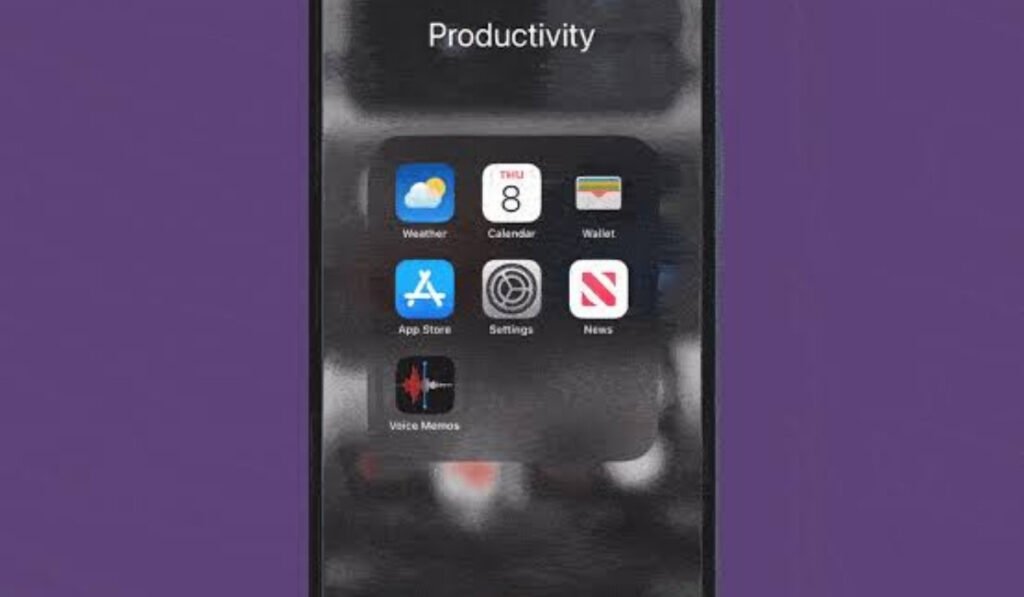
Perhaps you do not want to stop AirPods from reading texts from every app, but only from annoying ones. Apple provides granular control over which applications are allowed to use Siri to announce content. After navigating to the “Announce Notifications” settings, scroll down to the “Announce Notifications From” list. Here, you will see every app on your phone that supports this feature. You can tap on specific apps, such as social media platforms or news outlets, and toggle their announcement permissions off individually. This allows you to keep important messages active while silencing the rest.
Using the Control Center for Quick Access
For those who like to switch settings on the fly, adding a shortcut to the Control Center is a game-changer. To stop AirPods from reading texts without digging through menus, open Settings > Control Center. Find “Announce Notifications” in the “More Controls” list and tap the green plus icon to add it. Now, whenever you swipe down from the top-right corner of your screen, Stop AirPods from Reading Texts you can tap the bell-shaped icon to quickly enable or disable the feature. This method is incredibly useful for temporarily muting announcements during a workout or a commute.
Managing Announcements on Apple Watch
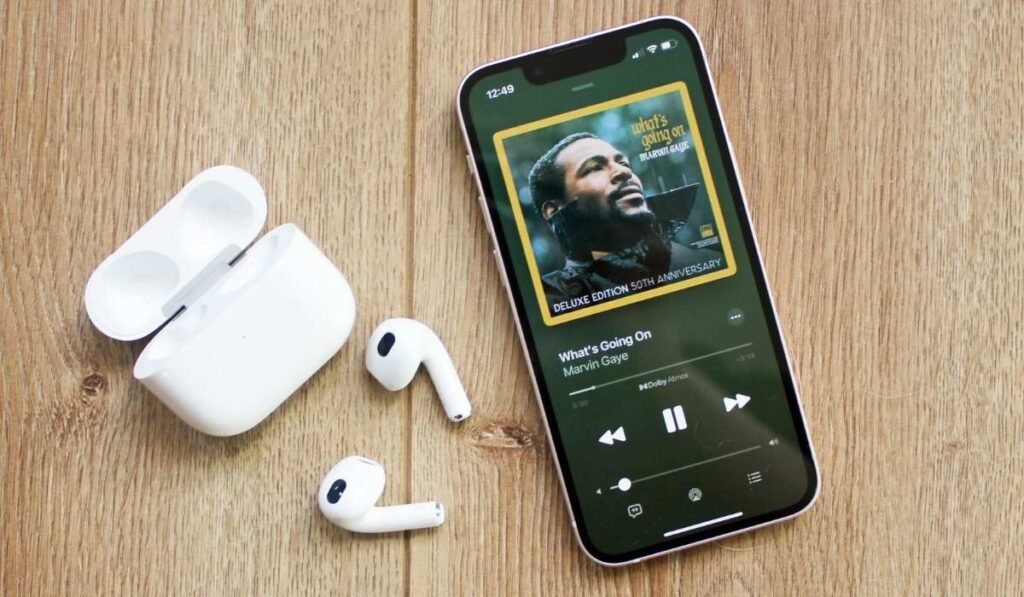
If you use an Apple Watch alongside your AirPods, you might notice announcements coming through there as well. To stop AirPods from reading texts that are being funneled through your watch, you can manage the settings directly on your wrist. Swipe up on your watch face to open the Control Center, find the bell icon, and tap it to disable announcements. Alternatively, you can use the Watch app on your iPhone to customize which notifications are announced. Ensuring your watch and phone are synced correctly will prevent double-notifications and keep your audio experience consistent across your entire Apple ecosystem.
Why Do Not Disturb Is a Great Alternative
If you don’t want to permanently stop AirPods from reading texts, using “Do Not Disturb” (DND) or a custom Focus mode is an excellent temporary solution. When DND is active, Siri will silence all incoming notifications, including those that would otherwise be announced through your AirPods. You can easily toggle this on via the Control Center. DND is perfect for when you need a “deep work” session or a quiet hour of music. Once you are ready to receive alerts again, simply turn the Focus mode off, and your previous announcement settings will resume automatically.
Troubleshooting Siri Announcements
If you have tried to stop AirPods from reading texts but they continue to talk, you may need to check your connection status. Sometimes, a software glitch or a pairing issue can cause settings to revert. Ensure your iOS is updated to the latest version, as Apple frequently optimizes how Siri interacts with accessories. Also, verify that your AirPods are correctly paired in your Bluetooth settings. If they are listed as a generic device rather than recognized AirPods, some of the advanced Siri controls may not apply correctly. Resetting your AirPods can often clear up these configuration conflicts.
The Role of Head Gestures
Newer models of AirPods and Beats headphones support head gestures, which allow you to interact with notifications without saying a word. If you find the voice announcements annoying but still want to interact with incoming alerts, you might actually want to keep them on but use head gestures to decline them. A simple shake of your head from side to side can dismiss an announcement. This can be a “middle ground” solution if you don’t want to completely stop AirPods from reading texts but find the vocal interruptions cumbersome to handle hands-free.
Balancing Privacy and Connectivity
For many, the desire to stop AirPods from reading texts stems from a need for privacy. Having your personal messages read aloud in public spaces can be uncomfortable. Beyond just turning off the feature, you should also consider your iPhone’s lock screen settings. By hiding message previews on the lock screen, you prevent your phone from displaying sensitive information even if your AirPods are muted. Protecting your digital privacy is about combining settings—silencing the audio output and managing the visual display—to ensure your personal communication remains strictly between you and your device.
Customizing Volume for Siri
If the volume of the announcements is the main reason you want to stop AirPods from reading texts, you might actually prefer to just lower the volume instead. Siri’s announcement volume can be adjusted independently of your media volume. Go to Settings > Accessibility > AirPods. You can often find volume controls here that allow you to quiet the assistant down. If Siri is speaking too loudly over your music, a simple volume tweak might save you from having to disable the feature entirely, allowing you to stay connected while maintaining a better audio balance.
Impact on Battery Life and Performance
While minimal, processing and announcing notifications through Siri does use a small amount of system resources and battery. If you are on a long trip and want to maximize your playtime, disabling the feature to stop AirPods from reading texts can slightly improve your battery efficiency. Every little bit helps when you are away from a charger. By silencing non-essential alerts, you let your AirPods focus purely on audio playback, which is their primary function. This small change can extend your listening session, especially on older models where battery capacity may be starting to diminish.
Keeping Only Time-Sensitive Alerts
If you struggle to stop AirPods from reading texts because you fear missing something vital, you can choose a “Time-Sensitive” only mode. In the Announce Notifications settings for Messages, Apple allows you to select “Time Sensitive and Direct Messages.” This configuration is a smart compromise. It filters out group chat noise or casual banter while letting truly urgent messages pass through. This way, you stay informed without being bombarded by constant voice interruptions, making the AirPods a tool for productivity rather than a source of distraction during your day.
Using Siri Voice Settings
Sometimes, it isn’t the content, but the voice itself that people find intrusive. If you cannot stop AirPods from reading texts because the announcement is jarring, try changing Siri’s voice or speaking rate. In Settings > Siri & Search, you can change the voice profile to something more natural or less “robotic.” Additionally, adjusting the speaking rate can make announcements less disruptive. If the voice is too slow, it drags out the interruption; if it is faster, the message is read and dismissed more quickly, allowing you to return to your audio much faster.
Managing Third-Party Apps
The biggest offenders for constant interruptions are often third-party apps like Discord, WhatsApp, or Slack. If you want to stop AirPods from reading texts but keep your native iMessage alerts, focus your efforts on the third-party list. Within the “Announce Notifications From” menu, go app by app and disable the specific ones that are “noisy.” Most social and work-related apps have the highest frequency of alerts. By pruning these apps, you retain the convenience of Apple’s native messaging system while eliminating the “noise” caused by other services that constantly demand your attention.
Understanding Bluetooth Device Compatibility
It is worth noting that the “Announce Notifications” feature is not limited to AirPods. If you use other high-end headphones that are “Siri-compatible,” they will also announce texts. If you switch to a different pair of headphones and find they are still reading texts, don’t be surprised. The settings you changed to stop AirPods from reading texts apply to the “Headphones” category broadly. This is a system-wide setting on your iPhone. If you use multiple pairs of headphones, turning off the master “Headphones” toggle in the notification settings is the most effective way to ensure silence across all of them.
Safety While Driving and Working
While the feature is often marketed as a “driving” tool, some people find it distracting even then. If you use your AirPods while working, the vocal interruptions can break your “flow state.” The ability to stop AirPods from reading texts is essential for maintaining focus. However, if you are in a situation where you truly cannot check your phone, consider using CarPlay instead of AirPods. CarPlay has its own dedicated notification settings, which allows you to keep alerts active in the car while keeping your AirPods silent during other activities. Segregating your settings by device context is the ultimate pro-move.
Keeping Software Updated
Apple regularly updates iOS, and sometimes these updates shuffle menus or change the behavior of Siri. To stop AirPods from reading texts reliably, keep your device updated. If you are running an outdated version of iOS, some of the newer granular controls (like “Time-Sensitive” alerts) might not be available to you. Keeping your device current ensures you have access to the latest privacy tools and configuration options Apple provides. It also helps with general system stability, ensuring your AirPods connect and respond to your setting changes as expected every single time.
Final Thoughts on Audio Control
Mastering your device’s settings is all about personalization. The power to stop AirPods from reading texts is just one example of how Apple gives users control over their digital environment. By following these steps, you are not just silencing a feature; you are curating your audio experience to suit your lifestyle. Whether you prefer complete silence or a highly filtered stream of notifications, these tools are there to serve you. Take a few minutes to explore the notification menus today and set your AirPods up to work exactly the way you want them to.
Conclusion and Further Learning
We hope this guide helped you regain control of your listening time. By knowing exactly how to stop AirPods from reading texts, you can now enjoy your music, podcasts, or silence without unwanted interruptions from Siri. Managing your notification preferences is a small change that leads to a much more peaceful daily routine. As you continue to customize your Apple device, you will discover many more ways to make your tech work for you rather than against you. To learn more about the technology behind these devices.
- How do I stop Siri from reading texts on my AirPods?
- Go to Settings > Notifications > Announce Notifications and toggle off “Headphones.”
- Can I turn off notifications for just one app?
- Yes, scroll down in the Announce Notifications menu and toggle off the specific app you wish to silence.
- Will disabling announcements on AirPods turn them off for my phone speaker?
- No, turning off “Headphones” only affects connected Bluetooth devices like AirPods or Beats.
- Is there a quick way to toggle this feature?
- You can add “Announce Notifications” to your Control Center for a one-tap shortcut.
- Does “Do Not Disturb” stop text reading?
- Yes, activating a Focus mode like Do Not Disturb will temporarily mute all Siri notification announcements.